
In today’s digital world, Solid State Drives (SSDs) have become popular and widely used storage devices due to their high performance, speed, and better durability. You can easily use SSDs in laptops, desktops, and external storage devices. However, sometimes your SSD might appear unallocated, and all its stored files and folders become inaccessible. The situation can cause panic, but don’t worry!
Fortunately, there are multiple easy fixes available that you can apply from your end to fix your unallocated SSD. This article explains what unallocated SSDs mean, the common reasons behind it, and the best ways to fix an unallocated SSD and recover data safely. Let’s get started!
Understanding What Is Unallocated SSD
An Unallocated SSD means a portion (or the entire space) of your SSD has no partition and no file system, so your computer cannot use or access it. When an SSD becomes unallocated, your device OS fails to recognise its file system or partition structure. It usually appears as “Unallocated Space” in the Disk Management tool and does not show up in File Explorer. Although your SSD is physically working, its stored data becomes inaccessible due to missing or corrupted partition information.
An unallocated SSD does not necessarily mean that the data is lost permanently. In many cases, data can still be recovered using professional data recovery software before making any changes to the drive.
Common Reasons Why SSD Becomes Unallocated
Before applying any method to fix an unallocated SSD, try to find the exact cause of this issue. Understanding adequate reasons helps in choosing the right solution. Below are the most common reasons:
- Accidental Deletion of Partition: You may have accidentally deleted the partition while resizing or formatting drives in Disk Management.
- Partition Table Corruption: Sometimes, due to sudden power failure, improper shutdown, or system crash, the partition table gets corrupted and makes your SSD appear unallocated.
- Virus or Malware Attack: Malicious software, such as viruses or malware, can damage the file system or partition information of the SSD.
- Improper SSD Removal: Disconnecting an external SSD without using the “Safely Remove Hardware” option can lead to partition issues.
- OS or Disk Management Errors: Errors during Windows updates or incorrect disk operations may result in unallocated space.
How to Fix an Unallocated SSD? [Best Methods]
Now that you are familiar with some common reasons for your unallocated SSD, it’s important to immediately proceed with the fixes. Here are some quick workarounds you can try to fix your unallocated SSDs:
Method 01: Assign a Driver Letter
Sometimes, your SSD appears as unallocated if the drive letter is not assigned to it. Without a drive letter, the operating system cannot display the SSD in File Explorer. Assigning a drive letter is a simple and safe method to make the SSD accessible again.
To assign a drive letter to your SSD:
- Firstly, right-click on the Start icon located at the bottom-left corner of your desktop.
- Click on Disk Management to launch it.
- Find the unallocated drive in the Disk Management window, right-click on it and select Change Drive Letter and Paths.
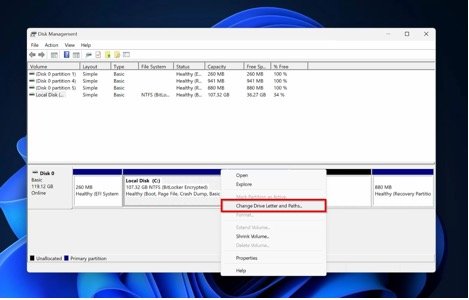
- Click Add or Change, then select a drive letter from the drop-down next to “Assign the following drive letter:”.
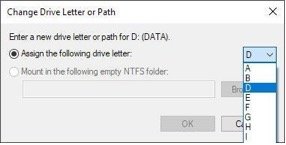
- Lastly, click OK and restart your PC, if required.
Method 02: Format the Unallocated SSD
If your SSD card still shows up unallocated, formatting can make it usable again. Formatting creates a new file system and partition, allowing the operating system to recognise the drive. Here’s how to format the unallocated SSD:
- Launch Disk Management and locate the unallocated SSD (which generally appears with a black bar on top).
- Right-click on your unallocated SSD and select New Simple Volume.
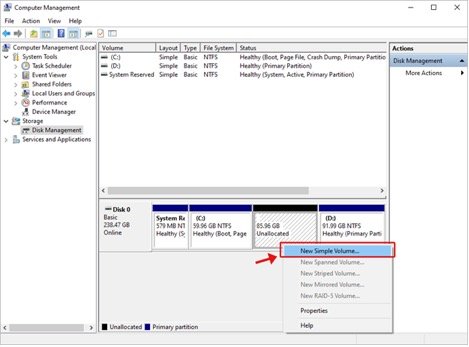
- Now, enter the size for your partition and click Next.
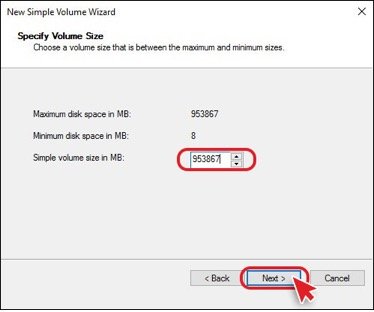
- Also, select the file system (recommended: NTFS for Windows) and set Allocation Unit Size to Default.
- Check the box next to ‘Perform a quick format‘ and click Next > Finish to conclude.
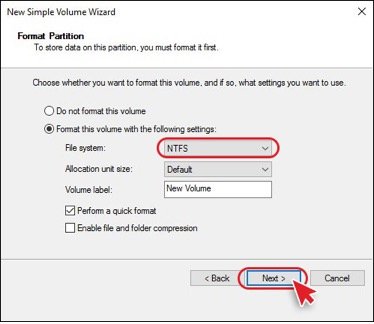
Once the formatting completes, check if the SSD appears in File Explorer with the assigned drive letter.
How to Recover Data From an Unallocated SSD?
If the SSD is fixed but the data still appears missing, you can use a previously created backup or reliable third-party Professional data recovery software to restore missing files. Tools like Stellar Data Recovery are especially designed to restore files lost, deleted, or formatted from any internal or external storage devices, including SSDs. This all-in-one data recovery tool supports recovery of files deleted due to accidental deletion, formatting, system failure, or any other reason.
Fortunately, even if the SSD appears unallocated, data is often still present and can be easily restored using this professional data recovery software. Stellar Data Recovery is known for several features, such as an intuitive interface, quick recovery process, preview functionality, etc. This tool can easily recover deleted files of various types, including photos, videos, documents, and more.
Key Features of Stellar Data Recovery Software:
- The software is available in multiple versions, varying in features and prices.
- It performs a thorough scan of every sector of your storage drive to find lost or deleted files.
- Known for its simple and user-friendly interface, it allows even users without much technical knowledge to easily restore deleted files.
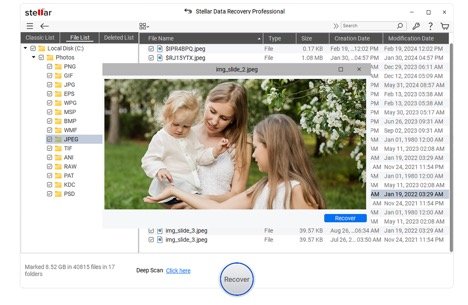
- It allows you to preview the recovered files before saving them on your device.
Steps to Recover Deleted Data from an Unallocated SSD Using Stellar Data Recovery Tool
Here’s how to recover data from an unallocated SSD using this professional data recovery software:
Step 1: Download and install the Stellar Data Recovery software from its official website on your Windows PC. Also, connect your unallocated SSD to that device.
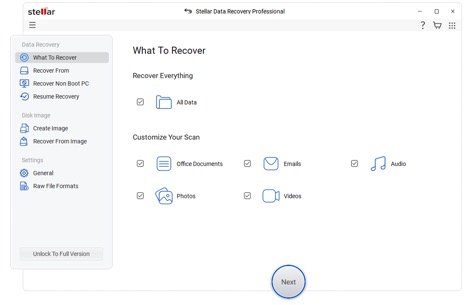
Step 2: Launch the software and from the homepage, select the type of file you need to restore, then click Next.
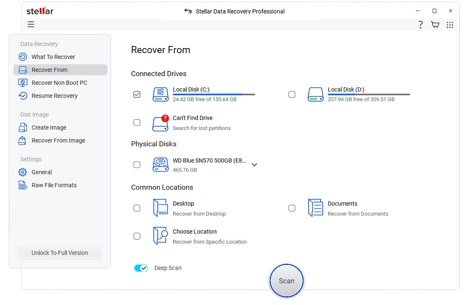
Step 3: The software will list all connected drives, including unallocated SSDs. Select your unallocated SSD and click Scan to initiate the scanning process.
Step 4: Once the scan is complete, preview the recoverable files to ensure they are intact before restoring. Select the files you want to recover and click Recover.
Additional Tips to Avoid Unallocated SSD Issues
Now that you are familiar with the best ways to fix unallocated SSDs and recover data, it’s important to avoid such issues from your end. You can consider the following preventive tips to avoid unallocated SSDs:
- Safely Remove External SSDs: Always eject external SSDs using the “Safely Remove Hardware” option to prevent issues like data loss and partition corruption.
- Avoid Forced Shutdowns: Unexpected or sudden power outages may shut down your PC abruptly and can corrupt the SSD’s partition table. Use a UPS or properly shut down your system.
- Update SSD Firmware and Drivers: Regularly check for firmware and driver updates from the SSD manufacturer to maintain optimal performance and compatibility.
- Monitor Disk Health: Use SSD monitoring tools to check health, temperature, and bad sectors to prevent failures before they occur.
Conclusion
An unallocated SSD is a common but serious issue, especially if it contains your important data. Whether your SSD appears unallocated due to partition corruption, accidental deletion, malware attacks, or system errors, the above methods can help you easily fix it. The most important rule is to recover data before attempting any repair. You can use professional data recovery software such as Stellar Data Recovery to restore your lost data with ease. With proper precautions and regular backups, you can prevent SSD problems in the future.

